Symphon-E App Shelly Meter
1. Introduction
Dear customer,
Thank you for choosing the "Symphon-E App Shelly Meter". You are welcome to send us your suggestions so that we can further improve the quality of our products.
2. Requirements for integration into EMS
The Shelly …
-
… must be integrated in the same network as the EMS.
-
… must have a stable WIFI connection.
-
… must be set up via the proprietary Shelly app so that the consumption value can be displayed in the Symphon-E App Shelly Meter.
2.1. Compatibility
The Symphon-E App Shelly Meter is used to integrate the following Shelly devices as production meters or consumption meters into the FENECON Online Monitoring:
|
|
3. Installation of the Symphon-E App Shelly Meter
Instructions on the general procedure can be found here.
Select the Symphon-E App Shelly Meter in the EMS App Center and click on INSTALL APP:
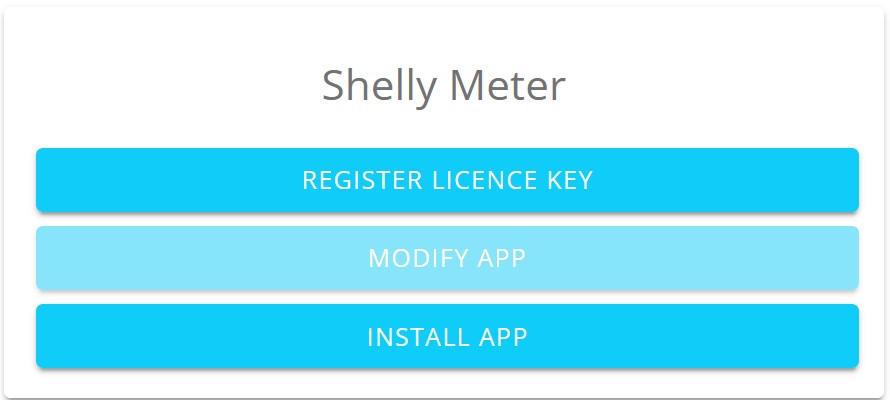
This window will then open:
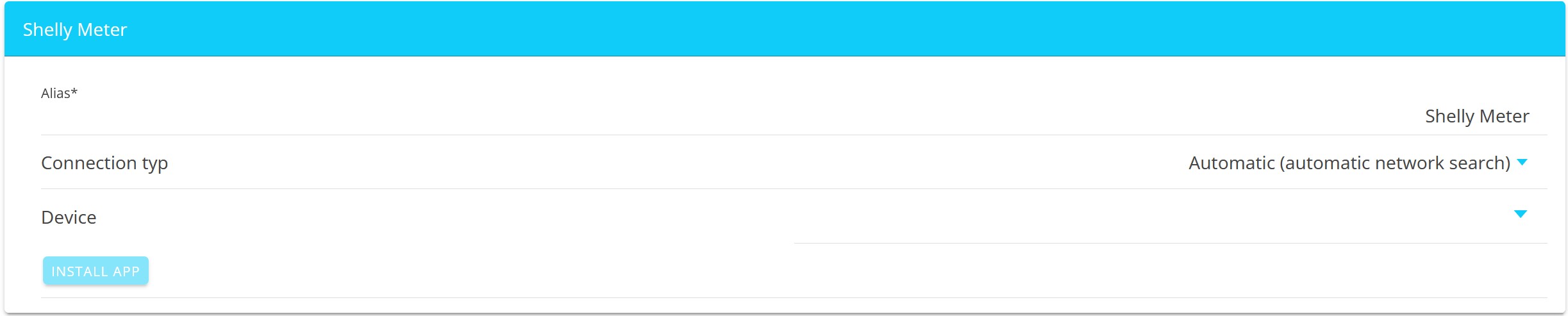
3.2. Connection type
There are two options here:

|
|||
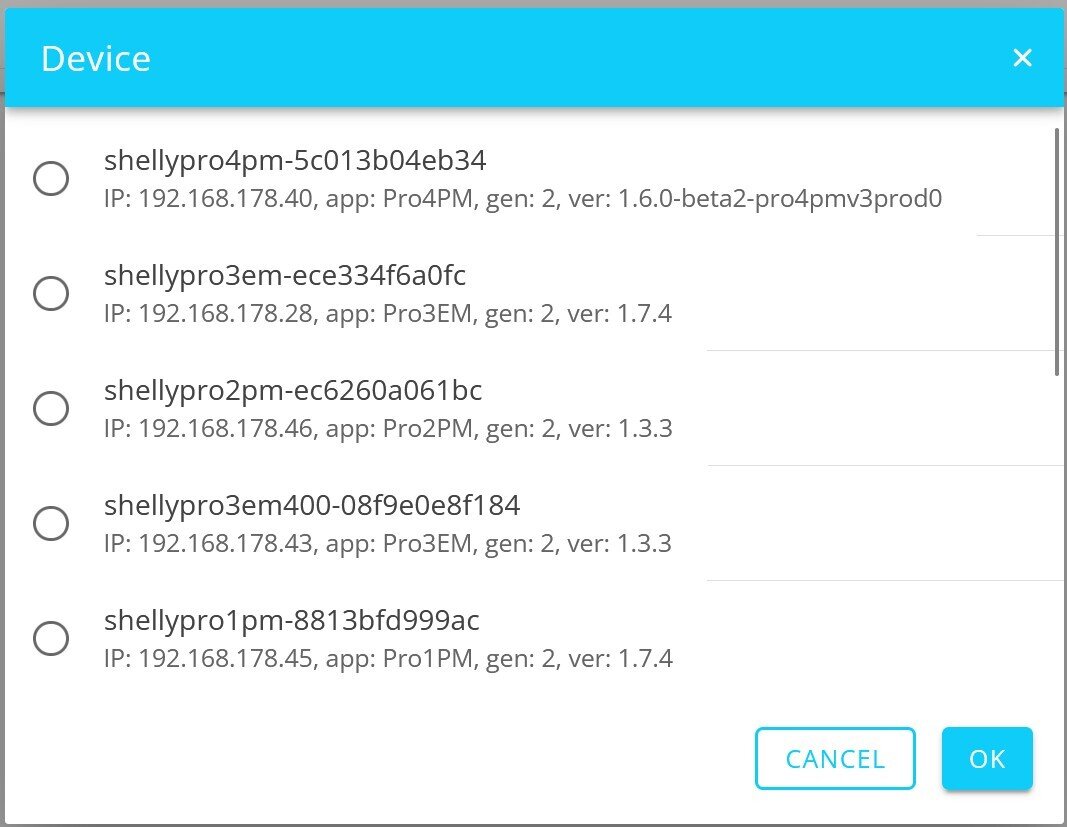
|
When the corresponding Shelly has been found, select it and click on OK. |
3.3. Device/IP address
Depending on whether you have opted for Manual entry or Automatic search, the IP entered or the device selected from the list is displayed here.
3.4. Type of use
Select whether the Shelly should be used as a Production or Consumption meter. Depending on the use, the corresponding widget (Production or Consumption) will be displayed later in FENECON Online Monitoring.
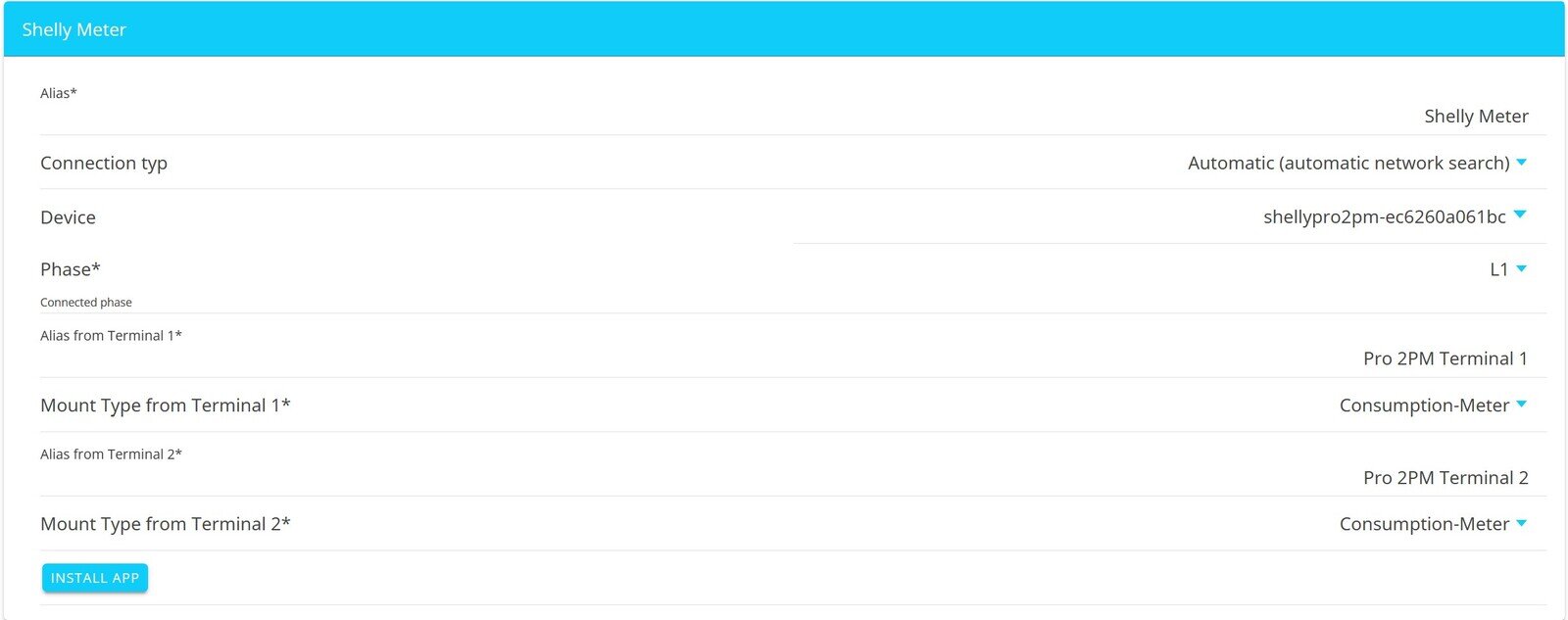
| A suitable alias should be assigned for each channel. |
Complete the configuration by clicking on INSTALL APP.
4. FAQ — Symphon-E App Shelly Meter
Why is it that no voltage/current/power value is displayed?
One reason for this may be that an incorrect IP address has been entered.
Please ensure that you have entered the correct IP address.
The current/power value is displayed as a negative value.
The Shelly app displays the consumption value as a negative value if the device is integrated as a production meter.
In this case, the negative display is correct as it represents the current generated.