EMS AppCenter
1. Range of functions
The EMS AppCenter offers the following features within the FENECON Online Monitoring:
2. Updating the EMS
To be able to use all EMS Apps extensively and in the latest version, carry out a system update to the latest version.
-
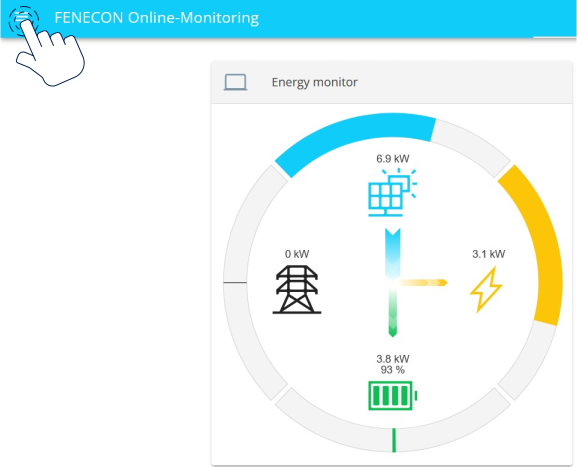
Open the burger menu at the top left of FENECON Online Monitoring.
-
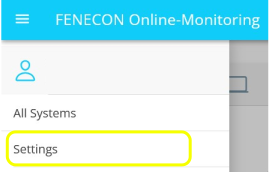
Select Settings.
-
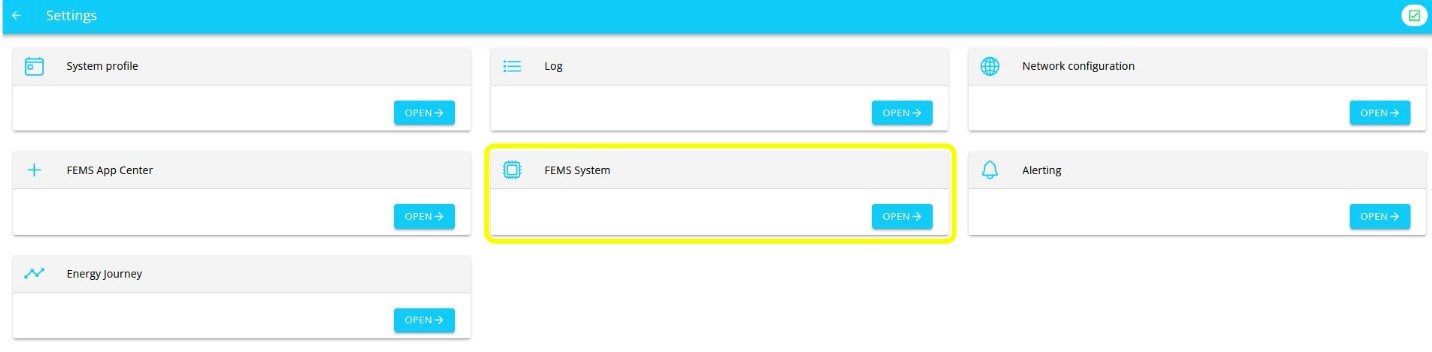
Select EMS System.
-
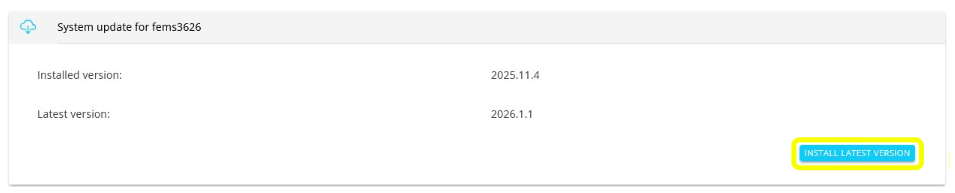
Click on INSTALL LATEST VERSION to update the system. If the latest version is already installed, you do not need to do anything else.
|
To return to the settings menu after the EMS system update: Click on the arrow at the top left. This applies to all submenus in the Settings area. |
3. Starting point: EMS AppCenter
-
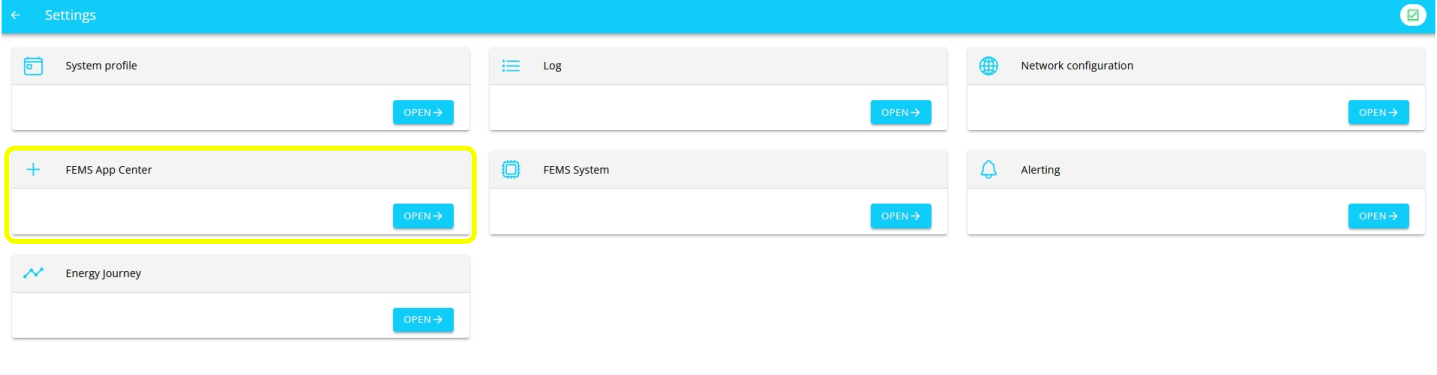
After you have performed a system update, open the EMS AppCenter.
-
Alternatively, click the burger menu in the upper-left corner in Monitoring to go to the EMS AppCenter.
-
-
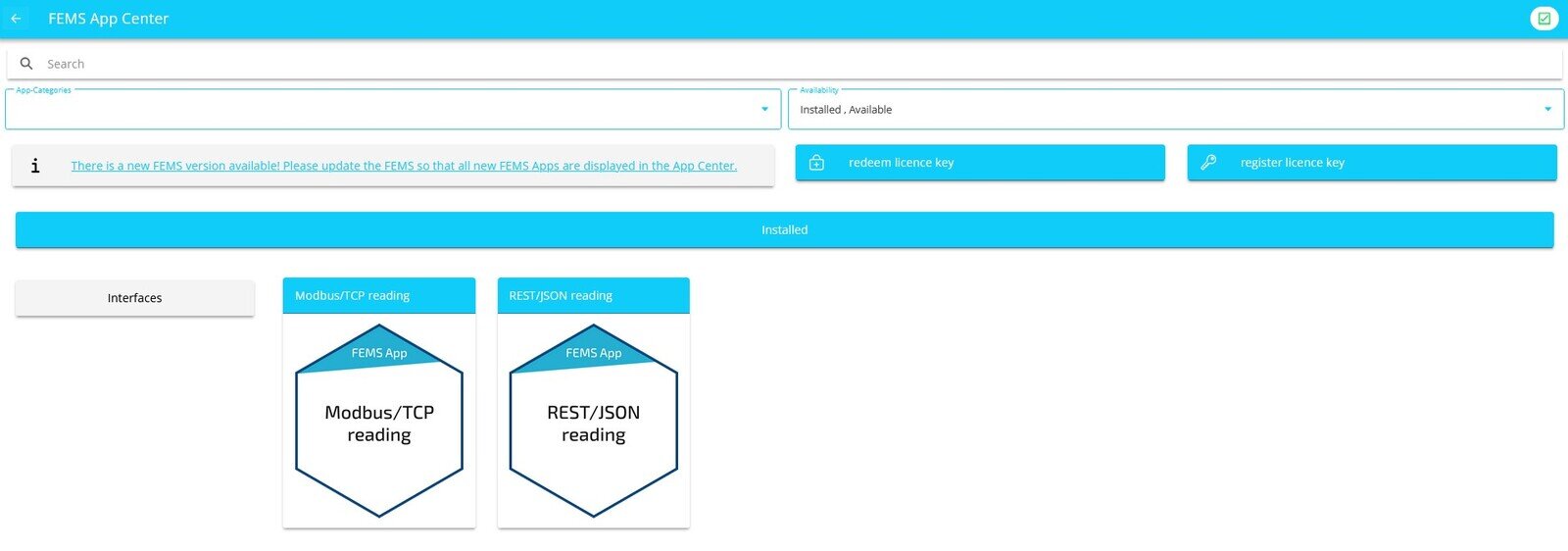
You are now in the AppCenter. From here, you can redeem and register license keys for apps, install new apps, and edit or configure apps that are already installed.
4. Licence key management and validity
In principle, the licence keys can only be redeemed once after a successful purchase, but for an unlimited period of time.
There are essentially three levels of licence key management in the App Center:
-
Validate: Checks the validity of the licence key entered.
-
Register: Assigns the licence key to EMS.
-
Redeem: Uses the licence key for the installation.
|
We recommend registering licence keys in advance and redeeming them at a later date. It is always advisable to register a license key in advance if the installation of the respective EMS App is going to take place later, e. g. because the customer network or the associated hardware (e. g. charging station, heat pump, PV inverter, etc.) has not yet been set up. If the license key is already registered, it only needs to be selected later during installation. |
5. Register licence key
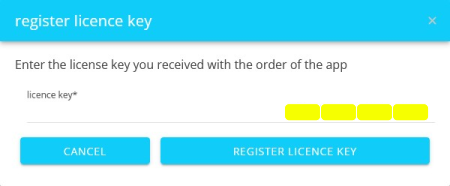
Click on the Register licence key button at the top right of the App Center.

A window for registering a licence key opens.
-
Enter the 16-digit key in the corresponding field and then click on VALIDATE LICENCE KEY:

The entered licence key is then checked for validity.
If the licence key is valid, it can be registered by clicking on the button of the same name.
⇒ REGISTER LICENCE KEY.
| If the licence key is invalid, please check your entry and try again. |
After successfully registering a licence key, the REDEEM LICENCE KEY button in the App Center changes as follows:

The registration of the licence key is now complete.
6. Redeem licence key directly
Click on the "Redeem licence key" button at the top right of the App Center.

A window for entering a licence key opens:

You have two options here:
- Redeem a new licence key directly
-
If you have not yet registered a licence key or wish to redeem a new licence key, enter the 16-digit key in the corresponding field and then click on VALIDATE LICENCE KEY.
The entered licence key is then checked for validity.

If the licence key is valid, it can be registered by clicking on the button of the same name.
⇒ REDEEM LICENCE KEY
| If the licence key is invalid, please check your entry and try again. |
- Redeem an already registered licence key
-
In this case, the button in the App Center looks like this:
If you want to redeem an already registered licence key, check the corresponding box and select the appropriate, already registered licence key via drop-down menu.
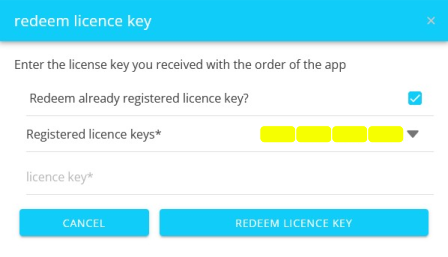
Then click on the REDEEM LICENCE KEY button.
After the licence key has been redeemed, the respective apps that can be installed with the redeemed licence key are displayed in a selection.
In the example below, a licence key for the Symphon-E App PV inverter has been redeemed. This means that there are now five apps available to choose from, one of which can now be selected and installed.
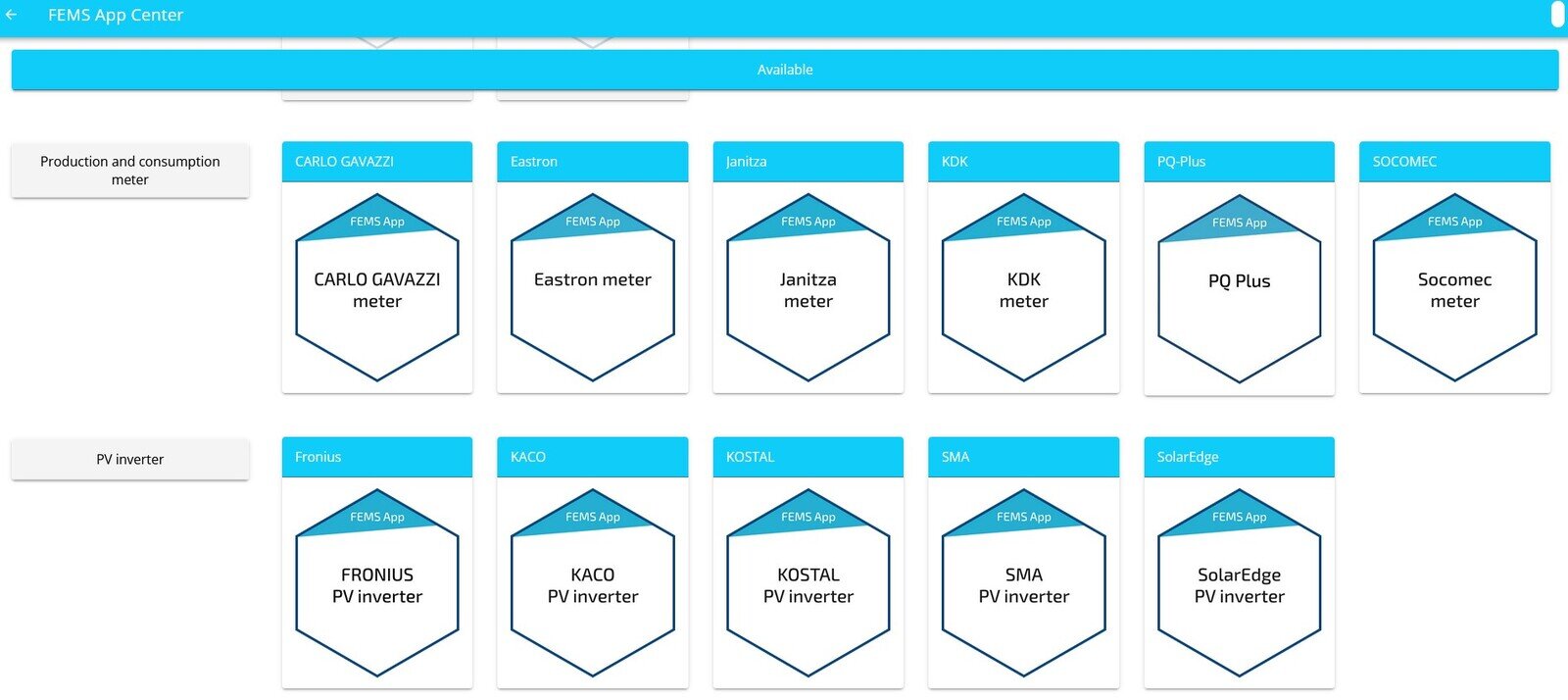
In this case, select the Symphon-E App SMA PV inverter according to the example.
Redeeming a licence key is now complete.
7. Installing a EMS App
There are two ways to install an EMS App via the App Center.
7.1. Installation after redeeming a licence key
After a licence key has been redeemed, a selection of available apps that can be installed is displayed.
The App Center offers a search bar and a filter option to get to the desired app more quickly:
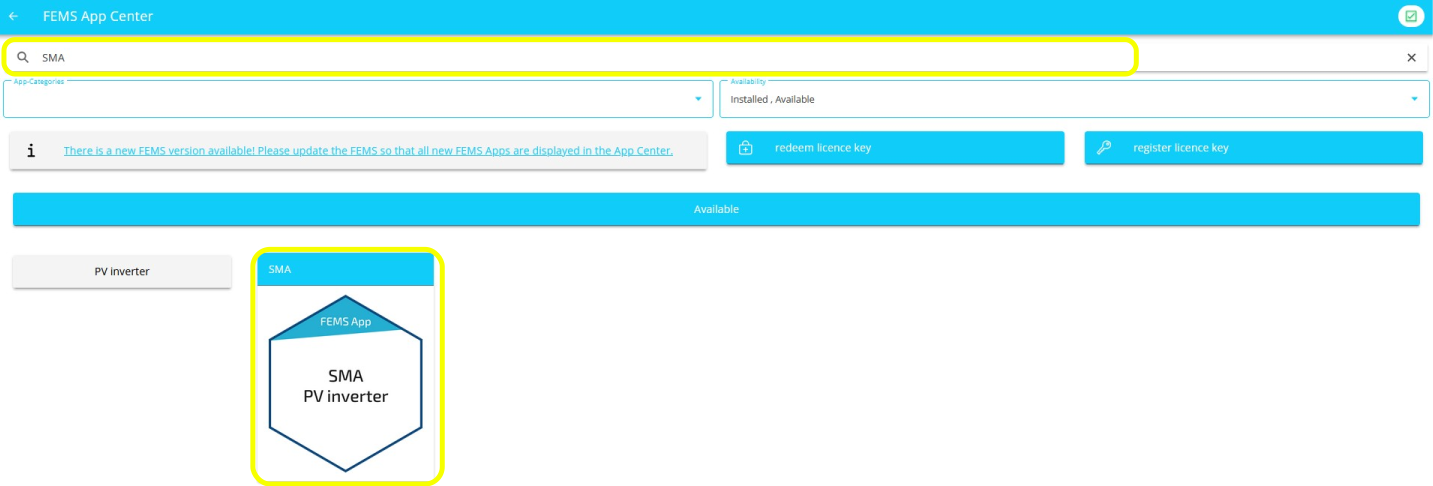
In the example, the EMS App SMA PV Inverter was searched for. This app is selected by clicking or tapping on the tile.
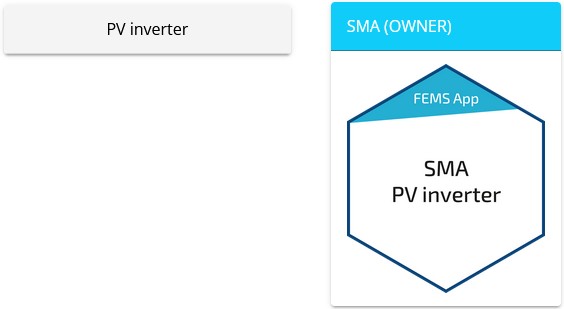
You will then be taken to the app overview:
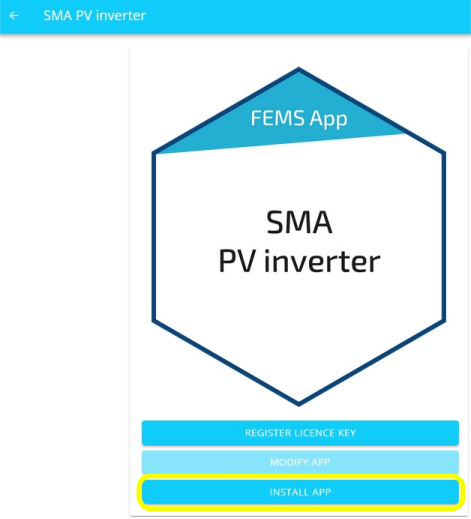
Select the INSTALL APP button.
You will then be taken to the installation wizard for the respective app:
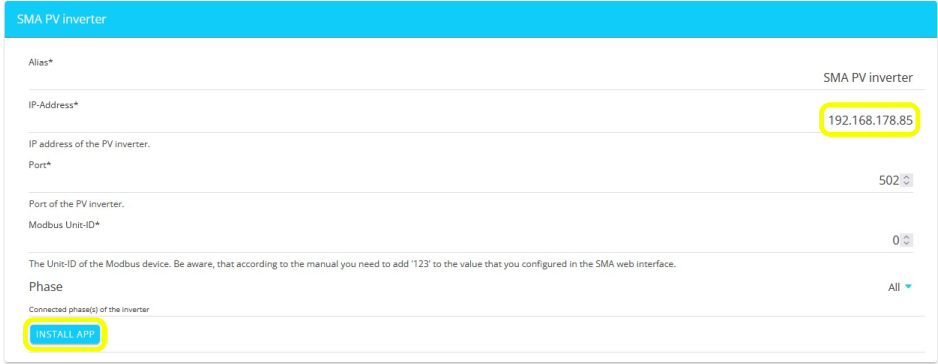
Some of the input fields are pre-filled. Nevertheless, enter your data if it differs from the default values (e. g. IP address). Otherwise, the default values can be retained (e. g. port, Modbus unit ID).
| Mandatory fields are marked with (*) |
| Check your entries and make sure that they are correct. Otherwise the respective app will not work properly! |
Select the INSTALL APP button again.
Once the installation process has been successfully completed, the new app will appear in the App Center overview in the Installed category.
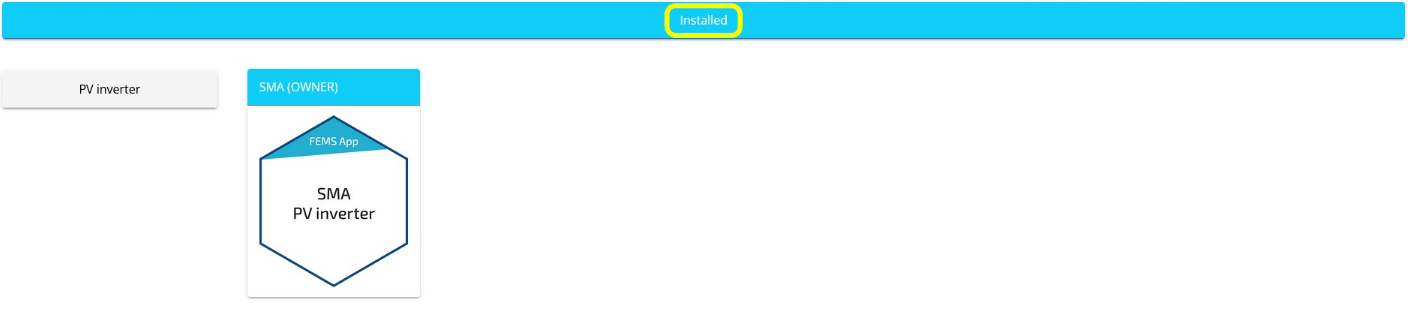
7.2. Direct installation
You can also install an app directly. To do this, go to the App Center overview and search for the desired app.
| Only apps from the "Available" category can be installed. |
In the example, the EMS App SMA PV Inverter was searched for. This app is selected by clicking or tapping on the tile.
You will then be taken to the individual view of the app:
Select the INSTALL APP button.
An input mask for redeeming a licence key appears:
You have two options here:
- Redeem a new licence key directly
-
If you have not yet registered a licence key or wish to redeem a new licence key, enter the 16-digit key in the corresponding field and then click on VALIDATE LICENCE KEY.
The entered licence key is then checked for validity.
If the licence key is valid, it can be registered by clicking on the button of the same name.
⇒ REDEEM LICENCE KEY
| If the licence key is invalid, please check your entry and try again. |
- Redeem an already registered licence key
-
In this case, the button in the App Center looks like this:
If you want to redeem an already registered licence key, check the corresponding box and select the appropriate, already registered licence key via drop-down menu.
Then click on the REDEEM LICENCE KEY button.
You will then be taken to the installation wizard for the respective app.
Some of the input fields are pre-filled. Nevertheless, enter your data if it differs from the default values (e. g. IP address). Otherwise, the default values can be retained (e. g. port, Modbus unit ID).
| Mandatory fields are marked with (*) |
| Check your entries and make sure that they are correct. Otherwise the respective app will not work properly! |
Select the INSTALL APP button again.
Once the installation process is complete, the new app will appear in the App Center overview in the Installed category.
8. Modifying a EMS App
Apps that have already been installed can be subsequently modified to change their respective configuration.
To do this, select the relevant app in the App Center overview and click on the MODIFY APP button.
In the example below, the "EMS App PV Inverter" has been selected again.
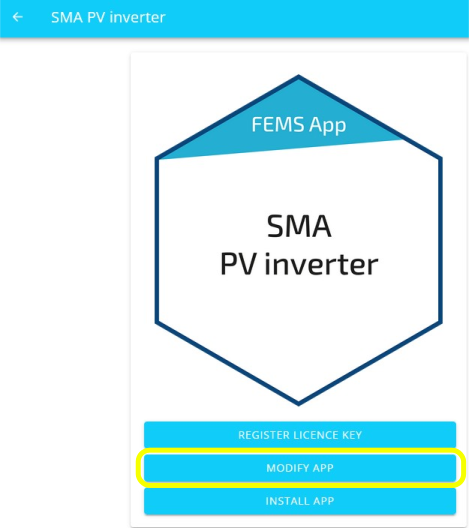
You will then be taken to the detailed view of the respective app:
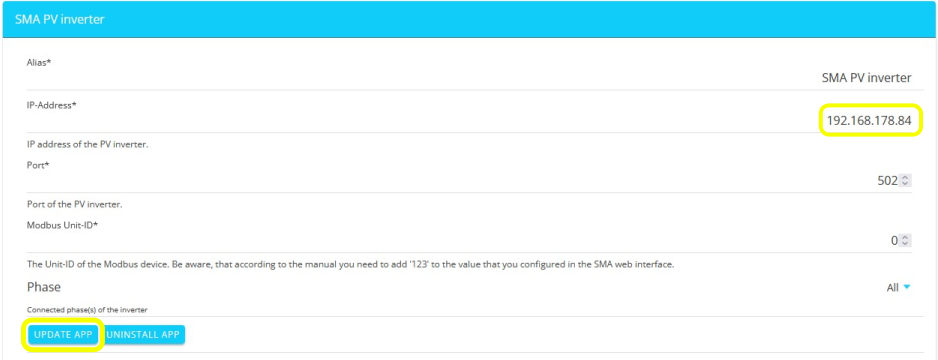
Make the desired configuration changes here. In the example, the IP address was changed (see yellow highlighting).
| Check your entries and make sure that they are correct. Otherwise the respective app will not work properly! |
Finally, click on the UPDATE APP button to save the configuration changes.
Modifying the app configuration is now complete.
9. Uninstalling a EMS App
Installed apps can be uninstalled quickly and easily via the App Center.
To do this, select the relevant app in the App Center overview and activate the MODIFY APP button.
In the example below, the EMS App PV Inverter has been selected again.
You will then be taken to the detailed view of the respective app.
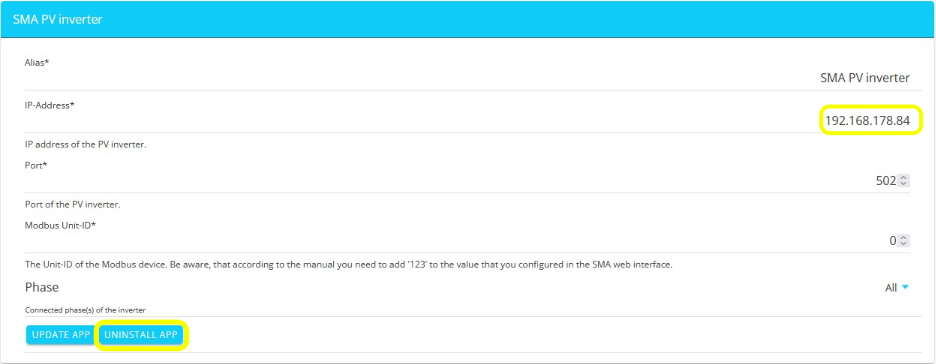
The deinstallation of the app is started via the UNINSTALL APP button. However, this must still be finally confirmed:

This completes the deinstallation of the app. The app is now no longer displayed in the App Center overview under Installed.